

Extending Backstage with Flows
What Is Backstage?
Section titled “What Is Backstage?”Backstage is an open source framework for building developer portals. It features:
- A Software Catalog that keeps track of metadata and ownership of the software (services, websites, libraries, etc.) in a system.
- Software Templates that define actions the developers can trigger from the UI.
- TechDocs, a docs-like-code approach that keeps documentation next to the code and renders a doc site on Backstage.
- A Plugin Architecture with an ecosystem of open source plugins to customize Backstage’s functionality.
In this guide we’ll focus on how Flows can extend Backstage’s Software Templates as a self-service tool for developers.
The Gap Between Portal and Engine
Section titled “The Gap Between Portal and Engine”Software Templates — also known as the Scaffolder — are designed to perform self-service actions, with a primary focus on Day-0 creation: scaffolding a new service, registering a catalog entity, sending a notification, etc. To go beyond these basics and implement workflows that capture the organization’s processes, teams extend the Scaffolder with community plugins or custom actions.
However, extending the Scaffolder has an operational cost. The development loop for custom actions adds friction — they are built and tested against a local Backstage instance, published to npm, and imported into the real project, in hopes that production behavior matches. Community plugins carry their own risk, as quality varies and ongoing maintenance isn’t guaranteed. Either way, every new extension requires rebuilding and redeploying the entire application and, as Backstage evolves, version conflicts across all of them become a recurring pain point.
Even with extensions, the Scaffolder’s design limits what Day-2 workflows can look like. Templates are a sequential list of steps, without any conditional branching, parallel execution, or way to incorporate external input once the workflow starts. The Scaffolder can’t pause and wait for a Slack approval, then route based on the response. And its task log, while useful for debugging, can’t answer compliance questions like who requested or approved access to a resource on a given date.
Flows as a Backstage Execution Backend
Section titled “Flows as a Backstage Execution Backend”The Backstage App on Flows (shipped as part of its Core Registry) is the simplest way to leverage Flows’ capabilities to fill these gaps. The integration is very simple: installing the app requires a one-time update in Backstage’s configuration; then, each Flow with a Backstage Entrypoint block will be registered automatically in Backstage as a Software Template. The entrypoint block fully defines the template’s interface on Backstage (its form fields, metadata, and descriptions) and, on submission, propagates the request to subsequent blocks that carry out the workflow.
From there, workflows can branch based on runtime data using Condition blocks, run actions in parallel (with Explode and Collect for dynamic fan-out over lists), pause for human input — for example, through Slack interactive messages — and introduce timed delays with Sleep. These composable building blocks can model workflows that would otherwise require custom TypeScript actions in the Backstage backend. If a step fails mid-execution, you can replay from the failed block without re-running the entire workflow or re-requesting approvals that already happened. New integrations with services like AWS, Slack, or PagerDuty are available as pre-built apps in the App Catalog, and the Apps SDK lets you build custom ones for internal APIs not covered by the catalog.
Every Flow execution produces a structured log of what was received, what each block produced, and what was sent, making the workflow observable. Flows also provides organization-level audit logs that track who did what and when. And, because a Flow’s visual representation on the canvas is the thing that actually runs, it doubles as documentation. This is particularly useful for processes that need to be understood beyond the team that built them, like incident runbooks or access request procedures.
Backstage remains the portal — the place where developers discover services, find documentation, and trigger workflows. What Flows does is reduce the complexity of implementing workflows while adding a layer of observability, recoverability, and confidence.
Step-by-Step: Self-Service Database Provisioning with Approval
Section titled “Step-by-Step: Self-Service Database Provisioning with Approval”In this guide, we’ll build a self-service workflow that lets developers deploy Spacelift Templates from Backstage with a Slack approval step. The request is submitted through a form on Backstage, approved on Slack, and deployed by Spacelift. The developer receives a DM with the deployment details once it completes.
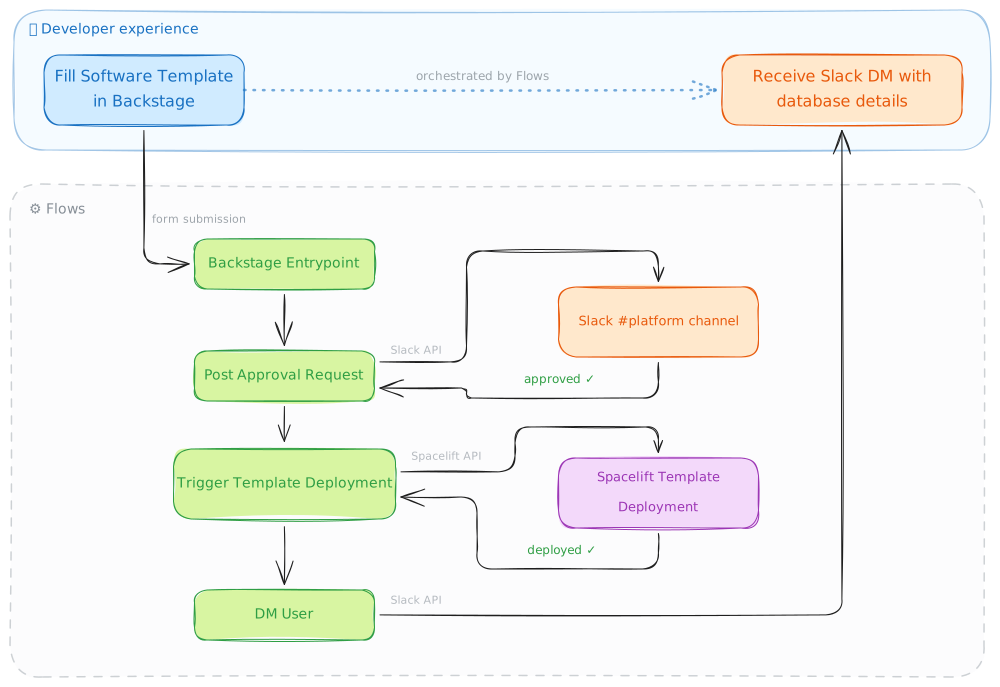
We’ll use a database provisioning template as the concrete example, but the same pattern works for any template — or, more broadly, for any operation that benefits from approval workflows and audit trails, such as infrastructure provisioning, developer onboarding, or incident response.
Prerequisites
Section titled “Prerequisites”- A running Backstage instance.
- A Flows project and a Slack workspace you can install apps to.
- A Spacelift Deploy account linked to your Flows organization, with a template configured for Aurora database provisioning.
- A Deploy role granting
SPACE_READandCREATE_BLUEPRINT_DEPLOYMENTon the Space you provision into (the system Admin role covers both), attached to the Flows project this flow lives in.
Install the Apps
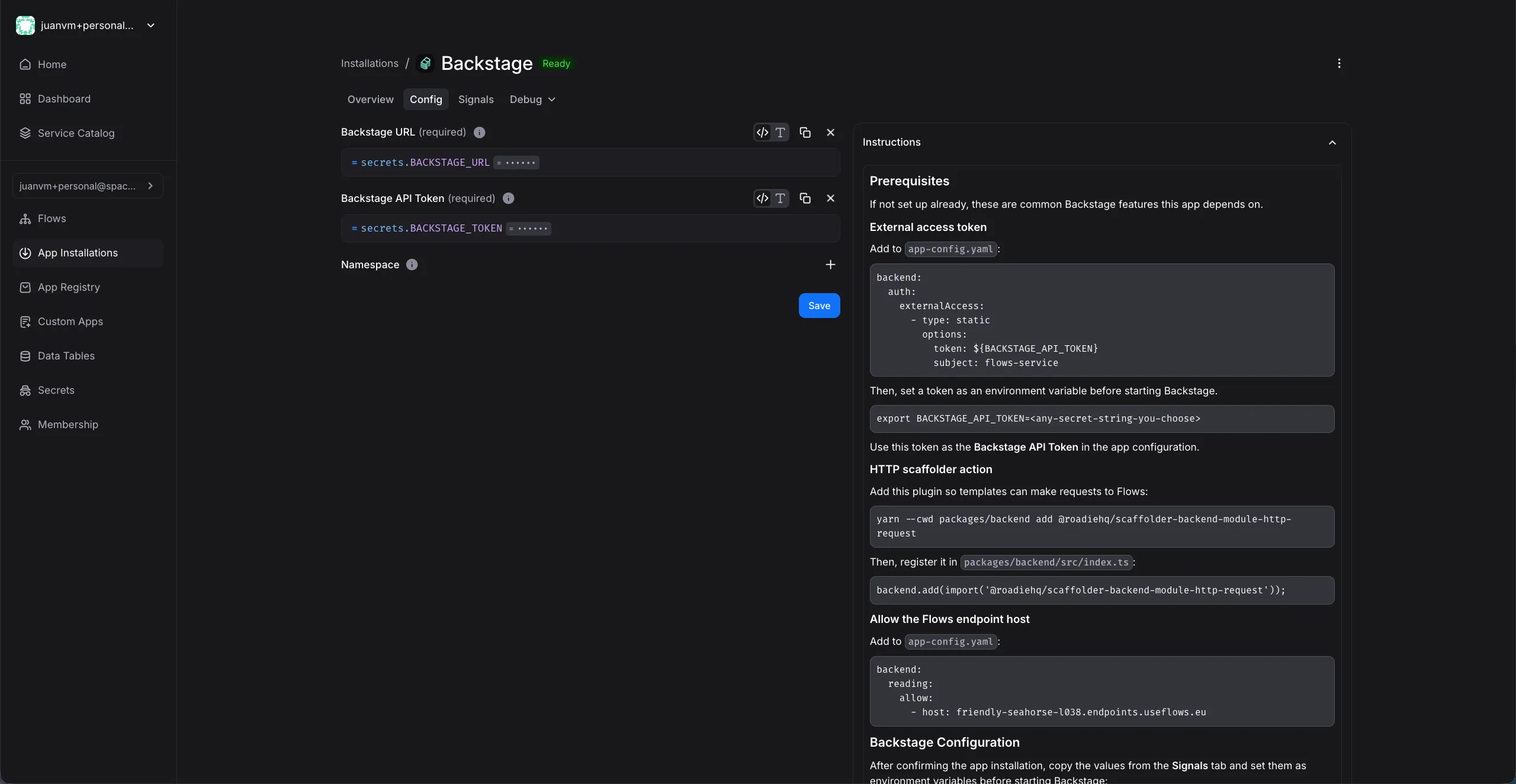
Section titled “Install the Apps”Install the Backstage and Slack apps from the App Catalog in your Flows project. See the app installation guide for general instructions; each app displays precise setup instructions after installation.
- The Slack app walks you through creating a bot with the required permissions using a pre-configured manifest.
- The Backstage app requires adding a proxy endpoint and a new catalog location in the Backstage configuration. Once connected, templates defined by Backstage Entrypoint blocks appear on Backstage’s Create page automatically — no further Backstage changes or redeployments are needed.
Build the Flow
Section titled “Build the Flow”The following Flow automates the provisioning workflow, adding a Slack approval layer. On approval, Spacelift deploys the database using a pre-configured template, and the developer receives a DM with the deployment details once it completes.
Copy this flow definition into your project, attach the Slack and Backstage blocks to your app installations, and confirm the Backstage Entrypoint block.


;}.e{fill:%23fff;}%3c/style%3e%3clinearGradient%20id='c'%20x1='.03'%20y1='705.03'%20x2='76.59'%20y2='705.03'%20gradientTransform='translate(-112.72%20713.32)%20rotate(9.24)%20scale(1%20-1)'%20gradientUnits='userSpaceOnUse'%3e%3cstop%20offset='.08'%20stop-color='%2382ffe8'/%3e%3cstop%20offset='.95'%20stop-color='%237c47fc'/%3e%3c/linearGradient%3e%3c/defs%3e%3cg%20id='b'%3e%3cpath%20class='e'%20d='M64.64,34.81c-.82,6.24-3.33,9.96-6.89,10.22-2.44,.02-4.75-1.11-6.24-3.04,5.31-3.73,8.8-9.52,9.64-15.96-14.21,4.23-28.91,6.61-43.73,7.07,1.72,3.56,4.33,6.63,7.57,8.9-5.7,6.55-8.77,14.99-8.59,23.67h5.99c-.14-6.76,2.06-13.36,6.23-18.67-.9,6.19-1.46,12.42-1.69,18.67h10.63s-1.95-8.06,1.23-8.07c3.18,0,1.22,8.07,1.22,8.07h10.64c-.21-5.9-.73-11.79-1.55-17.65,1.18,.95,2.51,1.71,3.94,2.24,1.64,.61,3.38,.87,5.13,.75,3.17-.24,6.11-1.78,8.09-4.27,2.24-2.67,3.69-6.42,4.31-11.14l-5.94-.78Z'/%3e%3cellipse%20class='d'%20cx='38.31'%20cy='23.6'%20rx='38.75'%20ry='9.45'%20transform='translate(-3.29%206.46)%20rotate(-9.24)'/%3e%3cpath%20class='e'%20d='M59.06,13.08C53.52,1.58,39.71-3.24,28.21,2.3c-9.2,4.44-14.4,14.39-12.78,24.47,1.11,6.89,46.79-.16,45.62-7.38-.36-2.19-1.03-4.32-1.99-6.32Z'/%3e%3c/g%3e%3c/svg%3e)
To customize this flow for your setup, define the following secrets in your Flows project:
| Secret | Value |
|---|---|
SLACK_CHANNEL_ID |
Slack channel where approval requests are posted |
SPACELIFT_SPACE |
Spacelift space for the deployment |
SPACELIFT_AURORA_TEMPLATE_ID |
ID of the Aurora database Template, e.g. development-database |
SPACELIFT_ENDPOINT |
Your Spacelift account URL |
Test the Integration
Section titled “Test the Integration”- Open your Backstage instance and go to the Create page.
- Select Self-Service Aurora DB request.
- Fill in your email (which must exist on your Slack workspace), a project identifier, choose an engine and instance class, and enter a database name.
- Click Create — Backstage will submit the form to Flows and display the success message.
- In the configured Slack channel, the approval request will appear with Approve and Reject buttons showing the request details.
- Click Approve. The approval message will be updated to reflect the decision, you’ll receive a DM confirming the approval, and Spacelift will start deploying the database.
- Once the deployment completes, you’ll receive a second DM with the connection details (endpoints, credentials secret, etc.).
Inspect the blocks’ events on the canvas to see who triggered the request, who approved it, what the Spacelift deployment produced, and when each step completed.