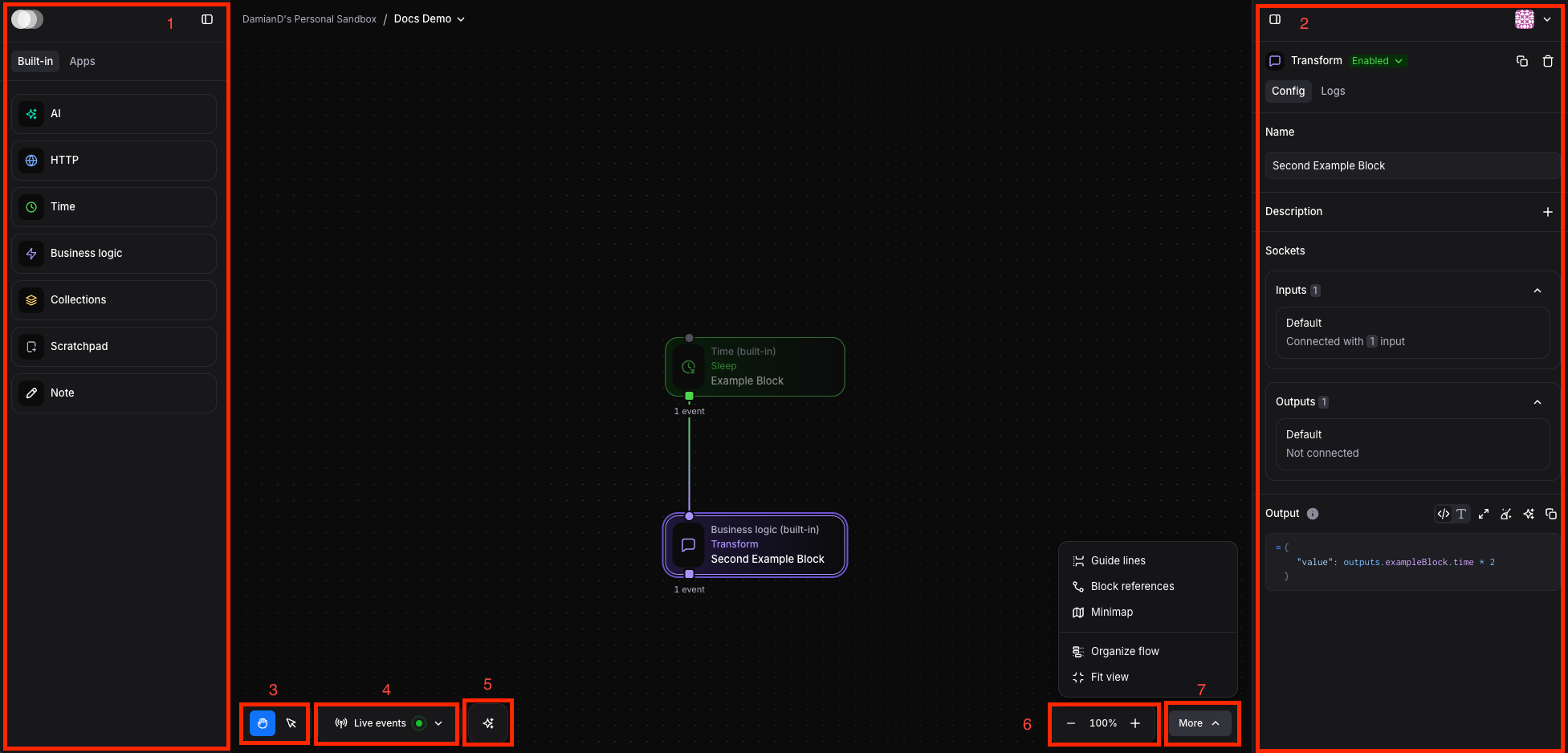
Flow Canvas Interface Overview
The Flow canvas is your visual workspace for building automation workflows. Here’s how to navigate and use the interface effectively.
Interface Layout
Section titled “Interface Layout”Canvas Navigation
Section titled “Canvas Navigation”- Left sidebar for choosing block types
- Built-in blocks (AI, HTTP, Time, Business logic, Collections, Memory, Note)
- Apps section for integrated services
- Right sidebar for setting block configuration for selected block including:
- Name and Description fields
- Sockets section with Inputs and Outputs
- Configuration details and JavaScript expression editor
- Cursor Mode Toggle
- Hand mode for moving around the canvas
- Cursor mode for selecting blocks
- Live Events Controls: Shows “Live events” with time duration options for monitoring event flow:
- Can display events from last 15 minutes, 30 minutes, 1 hour, 1 day, or turn off
- Green indicator shows it’s currently active
- AI Assistant Toggle: Control for toggling the AI assistant on/off in the left sidebar
- Canvas Zoom Controls: Shows “100%” zoom level with + and - buttons for adjusting the canvas view
- Canvas Organization Options: Additional menu options for managing and organizing the canvas layout
- The center canvas area shows a simple flow with two connected blocks: “Example Block” (Time/Sleep block) connected to “Second Example Block” (Business logic/Transform block)