

App Installation
Installing apps in your project makes their blocks available for use in your flows. This guide covers the complete installation process.
Installation Process
Section titled “Installation Process”Step 1: Access the App Registry
Section titled “Step 1: Access the App Registry”- Navigate to your project view
- Click Apps in navigation
- Select Registry to browse available apps
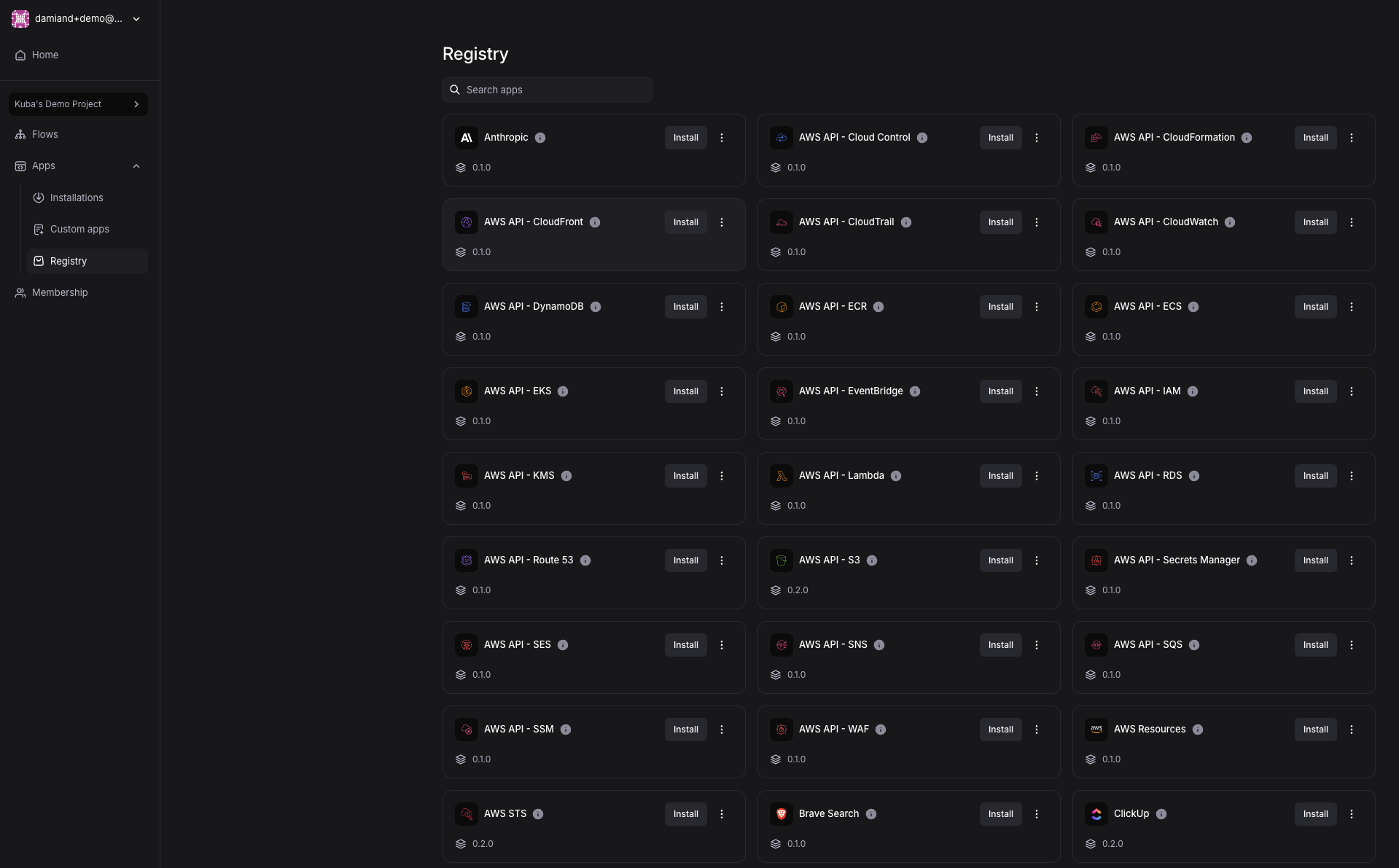
Step 2: Select Your App
Section titled “Step 2: Select Your App”Browse available apps and click the one you want to install.
Step 3: Create the Installation
Section titled “Step 3: Create the Installation”- Click Install on the selected app
- Provide descriptive name for this installation
- Use names indicating purpose (e.g., “AWS Production”, “Slack Engineering Team”)
- Helpful when having multiple installations of same app
- Click Install in bottom right corner
App installation is created but remains in Draft state until configured.
Step 4: Configure the App
Section titled “Step 4: Configure the App”Every app has specific configuration requirements:
- Click Config tab in your new installation
- Read configuration instructions carefully - specific to each app
- Instructions guide you through:
- Required API keys or authentication tokens
- Endpoint URLs or connection settings
- Permission requirements
- External setup needed in target service
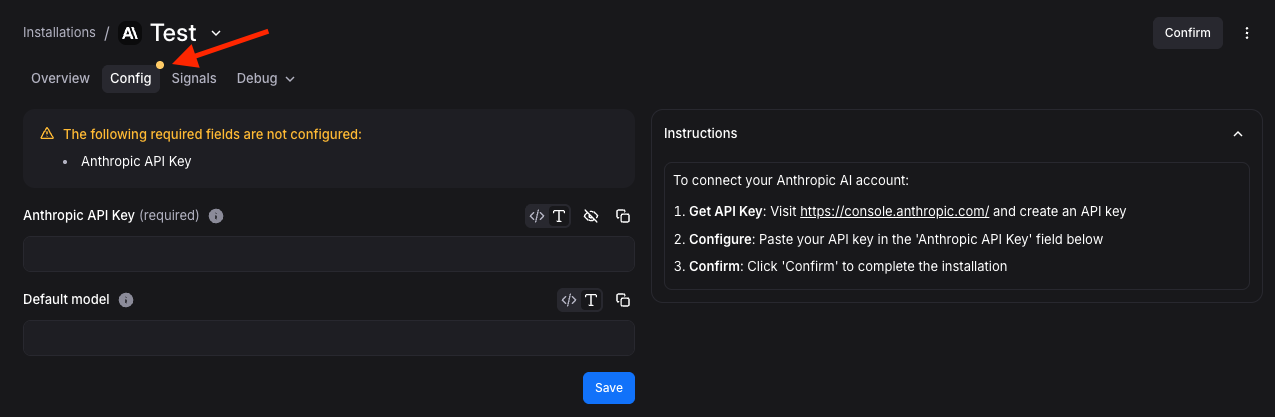
Step 5: Apply Configuration
Section titled “Step 5: Apply Configuration”- Follow step-by-step instructions in Config tab
- Enter all required configuration values
- Complete external setup (like creating API keys in target service)
- Click Save to store configuration
Step 6: Confirm Installation
Section titled “Step 6: Confirm Installation”- Review configuration settings for accuracy
- Click Confirm in top right to finalize installation
- App begins activation process
Step 7: Verify Installation
Section titled “Step 7: Verify Installation”- Navigate to Overview tab
- Check app state changed from Draft to Ready
- If installation failed, state changes to Failed - follow error messages for resolution
Step 8: Use in Flows
Section titled “Step 8: Use in Flows”Once app shows Ready status, blocks are available:
- Open any flow in your project
- App’s blocks appear in left sidebar in ‘Apps’ tab
- Drag and drop onto canvas like any other block
Getting Help
Section titled “Getting Help”If you encounter installation issues:
- Review app’s specific documentation in Config tab
- Check app’s error messages for specific guidance
- Verify external service configuration and permissions
- Contact support if problems persist